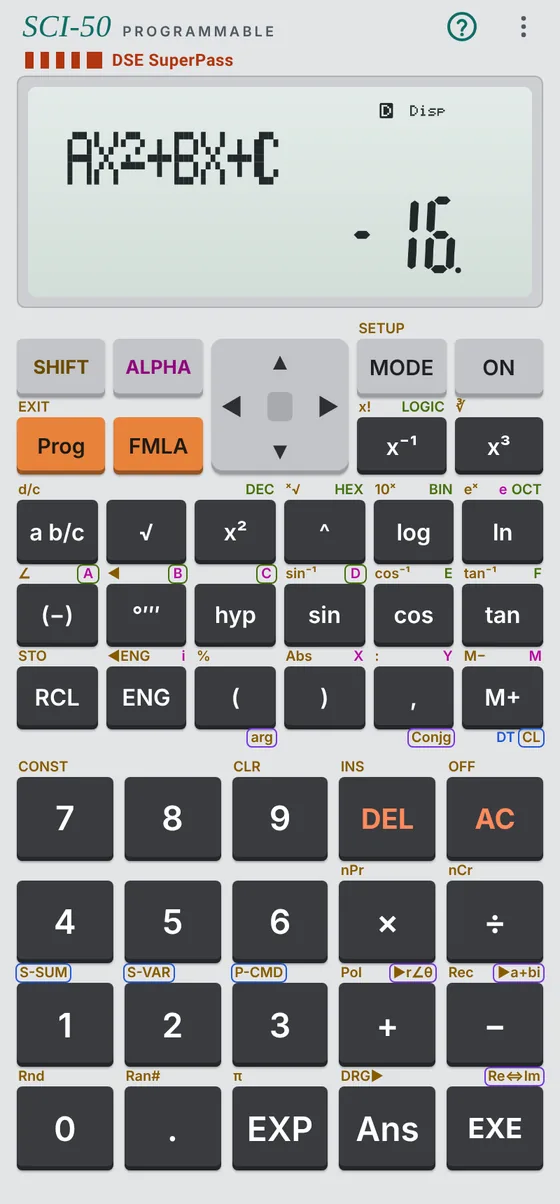
One short lesson per skill. Lesson 1 and the error appendix are complete here; the others give a first worked example, and the manual has the full chapter.
Getting started: keys, SHIFT, ALPHA and the display
Free lesson
Press ON to switch on. SHIFTAC switches off.
Each key has up to three jobs. The main label is on the key. Press SHIFT first for the label printed above it on the left, and ALPHA first for the letter printed above it on the right (the memories A, B, C, D, X, Y and M).
The display has two lines. The upper line shows what you typed, up to 16 characters at a time. The lower line shows the answer, up to 10 digits.
MODE chooses what the calculator does: 1 COMP (ordinary calculations), 2 CMPLX (complex numbers), 3 BASE (number bases), 4 SD (one-variable statistics), 5 REG (regression), 6 PRGM (programs).
SHIFTMODE (SETUP) opens the settings, starting with the angle unit: 1 Deg, 2 Rad, 3 Gra. The letter D, R or G at the top of the display shows the current unit.
AC clears the line. SHIFT9 (CLR) offers 1 Mem, 2 Setup, 3 All; press EXE to confirm. In SD and REG, 1 clears the statistics data.
On a computer, every calculator key has a keyboard key. Press ? to see the key map.
02
COMP mode: order of operations, Ans and memories
Full chapter in the manual
Type 6÷2(2+1)EXE. The answer is 1, and the upper line shows the calculator's reading, 6÷(2(2+1)): multiplication by a bracket is done before the division.
To keep a result for later, press SHIFTRCL (STO) and a memory key, for example (−) for A. The display shows Ans→A.
In the manual: Ans, the memories A to M, standard form with EXP, engineering notation and 30 drills with answers.
03
Fractions, percentages, degrees-minutes-seconds
Full chapter in the manual
Type 1a b/c2+1a b/c3EXE. The display shows 5⌐6, meaning 5/6. Press a b/c again for the decimal, 0.833333333.
In the manual: mixed numbers, SHIFTa b/c (d/c), percentages and the °′″ key, with junior exam questions.
04
Trigonometry: angle units, inverse functions, Pol and Rec
Full chapter in the manual
Set degrees with SHIFTMODE1. Then SHIFTtan6÷2.5)EXE gives 67.38013505: the angle of a ladder whose top is 6 m up a wall and whose foot is 2.5 m away.
In the manual: radians, bearings, Pol( and Rec( for polar coordinates, and 3D problems.
05
Built-in formulas (FMLA)
Full chapter in the manual
The calculator holds 23 built-in formulas. To solve x² + 2x − 15 = 0: press FMLA, type 01 (QuadEquation), then enter a, b and c, each followed by EXE: 1EXE2EXE(−)15EXE. The display shows x1 = 3; press EXE for x2 = −5.
Formula 03 (HeronFormula) gives the area of a triangle from its three sides.
In the manual: all 23 formulas with a school example each.
06
Statistics: SD mode
Full chapter in the manual
MODE4 for SD mode, then SHIFT91EXE to clear old data.
Enter each value followed by M+, which acts as DT: 12, 15, 15, 18, 20, 22, 25. The display counts the values (n = 7).
SHIFT21EXE gives the mean x̄ = 18.14285714. SHIFT22EXE gives the population standard deviation xσn = 4.1893938.
In the manual: frequencies, grouped data, combining two groups and standard scores. HKDSE uses xσn, not the sample value xσn−1.
07
Regression: REG mode
Full chapter in the manual
MODE5 offers the models Lin, Log, Exp and Pwr (and more on the next page). Choose 1 for linear, then enter each pair as x , y M+, for example 1,3M+. The display counts the pairs.
In the manual: reading the coefficients and r, and fitting log, exponential, power and quadratic models.
08
Complex numbers and number bases
Full chapter in the manual
MODE2 for CMPLX. Type (2+3ALPHAENG)(1−ALPHAENG)EXE (ALPHA ENG is i). The display shows the real part, 5; SHIFTEXE shows the imaginary part, 1. So (2 + 3i)(1 − i) = 5 + i.
MODE3 for BASE. Type 10EXE, then press log (BIN) for 1010 or ^ (HEX) for A.
In the manual: complex roots of quadratics, polar form and DSE-style questions.
09
Programming 1: your first program
Full chapter in the manual
MODE6 (PRGM), 1 (EDIT), then 1 for area P1. The counter shows the bytes left (680 when all areas are empty).
SHIFT3 (P-CMD) shows ? → : ◢ as 1 to 4. Type SHIFT31SHIFT32ALPHA(−)SHIFT332ALPHA(−). The upper line reads ?→A:2A.
Press AC, then MODE1 to return to COMP.
Run it: Prog1. At the prompt A? type 7EXE. The answer is 14.
In the manual: editing, deleting, saving bytes and debugging.
10
Programming 2: jumps, conditions and loops
Full chapter in the manual
A loop repeats lines. This program adds 1 + 2 + … + A. With A = 100 it shows 5050.
?→A
0→Y
For 1→X To A
Y+X→Y
Next
Y
In the manual: ⇒, Goto and Lbl, If…Then…Else…IfEnd, For…Next and While…WhileEnd, each with examples from the DSE programs.
11
The DSE program set (P1 to P12)
Full chapter in the manual
The calculator comes with the 12 DSE programs built in, for quadratics, simultaneous equations, cubics, circles, triangle centres and their complex versions. P1 to P4 sit in the program areas; P5 to P12 are kept in Banks 2 to 4.
The answer is out of range or undefined: division by zero, the square root of a negative number outside CMPLX, log of 0, or a program reaching such a step.
Check the values. In a program it often means "no real answer", such as a negative discriminant.
Syntax ERROR
The calculation is typed wrongly: a missing operand, a misplaced command, or a digit that does not exist in the current base.
Press ◀ or ▶ to jump to the error and correct it.
Stack ERROR
The calculation is too complex: too many numbers or operations waiting at once.
Split it into parts and use Ans or a memory.
Memory ERROR
A program would go over the 680 bytes shared by P1 to P4.
Delete a program you no longer need, or shorten one.
Go ERROR
A program has Goto n but no matching Lbl n.
Add the missing label or correct the number.
Data Full
Statistics memory is full: 80 values in SD (40 with frequencies on), 40 pairs in REG (26 with frequencies on).
Clear data you no longer need, or use frequencies.
Time ERROR
Sci-50 only: a program ran too long, usually a loop that never ends. A real calculator keeps running.
Check the loop condition. On a real calculator press AC.